Signer 2FA: One-time-passcode (OTP)
Available Plans: All Roles: All Roles
You can require recipients (signers or viewers) to authenticate using a one-time passcode (OTP) before accessing a document. This adds an additional layer of security by ensuring only the intended recipient can view or sign the document.
When enabled:
- The recipient must enter a one-time passcode sent to either their email or phone number to access the document.
- The passcode is valid for a single use and expires after a configured time if unused.
- The recipient will be required to authenticate again whenever accessing the document, including the finalized document from the server.
Setting up Authentication for a Recipient
Signer authentication can be added in two places:
- On the Recipients page when creating a new document.
- In the Recipients panel in the Document Editor, when editing an existing document or working on a template.
Adding Signer Authentication on the Recipients Page
- Click the lock icon next to the recipient’s name.
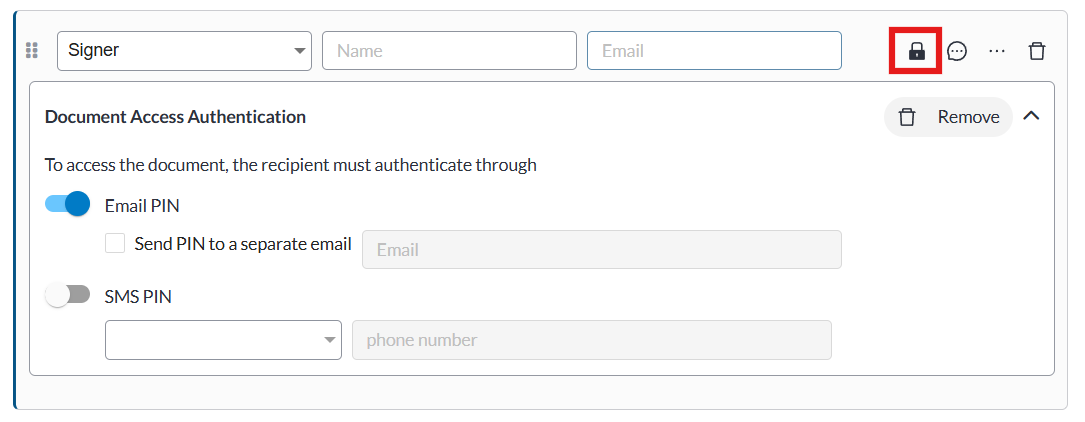
- An authentication panel will expand beneath the recipient.
- Select how the authentication code should be delivered:
-
- SMS
- Secondary Email (if configured)
Adding or Editing Signer Authentication on the Editor Page
- Select Edit next to the recipients section on the left panel.
- On the recipients list, click the lock icon next to the recipient’s email.
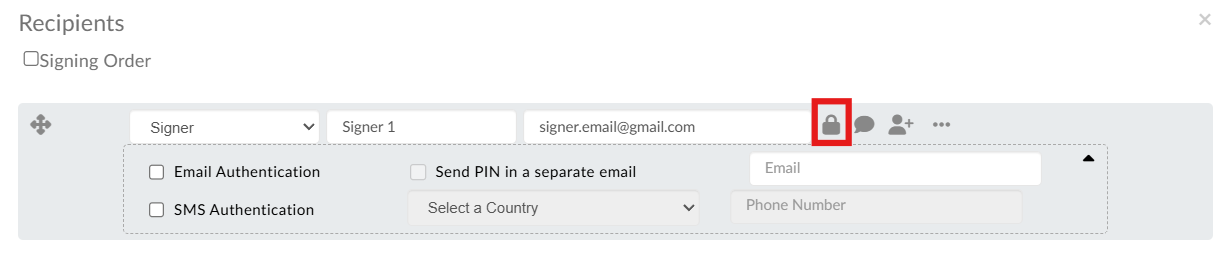
- An authentication panel will expand beneath the recipient.
- Email authentication will be enabled by default, however, you can also choose other or additional authentication methods such as:
- Secondary Email (if configured)
- SMS
- Click Save.
Once enabled, the recipient will be required to enter a one-time passcode before accessing the document.
Set the Expiration Time for One-Time-Passcodes
Available Plans: All Roles: Billing and Super Admins
When you set that a recipient must enter a one-time authentication code to access the document you can now set how long that code is valid for.
To set the expiration time:
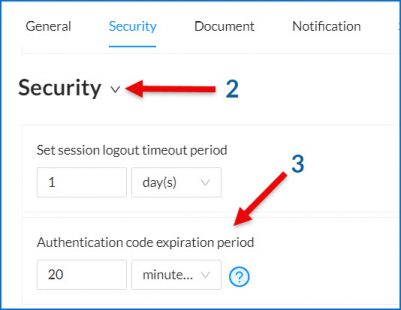
- Go to Admin >> Settings >> Global Settings
- In the Global Settings menu select Security
- Go to Authentication code expiration period and choose the timing of your choice. You may set it using minutes, hours, or days.